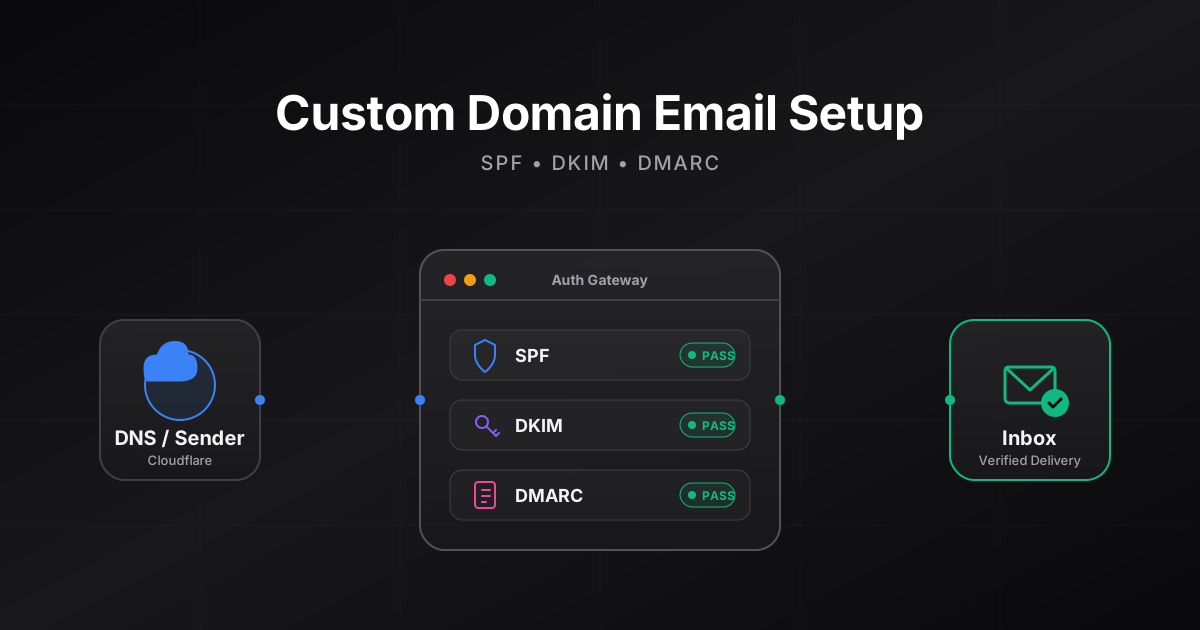

When I bought my domain, one of the first things I wanted was a professional email address — [email protected] instead of a generic Gmail address. But I also wanted to make sure nobody could spoof my domain to send fake emails pretending to be me.
This post covers everything I did: setting up Zoho Mail, configuring DNS records in Cloudflare, and implementing SPF, DKIM, and DMARC — the three protocols that prove your emails are legitimate.
Why Custom Domain Email?#
| Option | What It Looks Like | Impression |
|---|---|---|
| Gmail | “Just another person” | |
| Custom domain | [email protected] | “Professional, owns their infrastructure” |
For a DevOps engineer’s website, having a custom domain email shows you understand DNS, mail infrastructure, and security — which is literally part of the job.
Why Zoho Mail?#
| Provider | Free Tier | Why I Chose/Skipped |
|---|---|---|
| Google Workspace | No free tier anymore | Costs $6/month per user |
| Microsoft 365 | No free tier | Costs $6/month per user |
| ProtonMail | Custom domain on paid plan only | Costs $4/month |
| Zoho Mail | ✅ Free for 5 users, 5GB | Free, custom domain. Note: Web/App only (no IMAP) |
| Cloudflare Email Routing | Free | Forwarding only — can’t send FROM your domain |
Zoho Mail gives you a real mailbox on your custom domain for free for up to 5 users. You can send and receive emails as [email protected], though the free plan requires using the Zoho Mail website or mobile app (IMAP/POP for third-party apps like Outlook or Apple Mail is not included). You can upgrade to a paid plan to add IMAP/POP and other features.
Step 1: Add Your Domain to Zoho#
- Go to Zoho Mail → Sign up for the free plan
- Add your domain — Zoho will ask you to verify ownership
- Zoho gives you a TXT record to add to your DNS — this proves you own the domain
In Cloudflare DNS:
| Type | Name | Content |
|---|---|---|
| TXT | @ | zoho-verification=zb12345678.zmverify.zoho.com |
After adding this record, click “Verify” in Zoho. Once verified, Zoho gives you the remaining DNS records.
Step 2: MX Records (Mail Exchange)#
MX records tell the internet where to deliver emails for your domain. When someone sends an email to [email protected], the sending mail server looks up the MX records for yourdomain.com to find out which mail server should receive it.
Zoho provides these MX records:
| Type | Name | Mail Server | Priority |
|---|---|---|---|
| MX | @ | mx.zoho.com | 10 |
| MX | @ | mx2.zoho.com | 20 |
| MX | @ | mx3.zoho.com | 50 |
Priority determines the order — the sending server tries priority 10 first (mx.zoho.com). If that’s down, it tries priority 20, then 50. This gives you redundancy.
Add all three in Cloudflare DNS.
zoho.com). If you signed up at zoho.eu or zoho.in, your MX servers will be different (e.g., mx.zoho.eu). Always use the exact values Zoho provides during setup.Step 3: SPF (Sender Policy Framework)#
What Is SPF?#
SPF answers the question: “Which mail servers are allowed to send email on behalf of my domain?”
Without SPF, anyone in the world could send an email that says From: [email protected] — and the receiving server would have no way to verify if it’s real. SPF fixes this by publishing a list of authorized mail servers in your DNS.
How It Works#
1. You send an email from [email protected] via Zoho
2. Zoho sends it with a Return-Path (envelope sender) on your domain
3. The receiving mail server looks up the SPF record for that envelope domain
4. SPF record says: "Only Zoho's servers are allowed to send for this domain"
5. Mail server checks: Did this email actually come from Zoho's IP addresses?
   → Yes → SPF passes
→ No → SPF fails (mark as suspicious or reject)Return-Path), not the From: header you see in your email client. For simple setups like Zoho, these match your domain — but the distinction matters when you add third-party senders and is the reason DMARC alignment exists as a separate check (explained below).The Record#
Zoho provides this SPF record:
| Type | Name | Content |
|---|---|---|
| TXT | @ | v=spf1 include:zoho.com ~all |
include: domain varies by Zoho region. If you signed up at zoho.eu, use include:zoho.eu. If zoho.in, use include:zoho.in. Always use the exact SPF record Zoho provides during setup.Breaking it down:
| Part | Meaning |
|---|---|
v=spf1 | This is an SPF record (version 1) |
include:zoho.com | Allow any server that Zoho authorizes |
~all | Soft-fail everything else (mark as suspicious but don’t reject) |
~all vs -all: The ~ (tilde) means “soft fail” — unauthorized emails are marked suspicious but still delivered. The - (hyphen) means “hard fail” — unauthorized emails are rejected outright. I started with ~all to make sure legitimate emails weren’t accidentally blocked. Once you’re confident everything works, you can switch to -all for stricter enforcement.include: in your SPF record triggers DNS lookups, and nested includes count too. Zoho’s include:zoho.com uses a few of those. If you later add services like SendGrid, Mailchimp, or AWS SES, you can easily exceed this limit — causing SPF to permanently fail. Use tools like dmarcian SPF Surveyor to audit your lookup count.Step 4: DKIM (DomainKeys Identified Mail)#
What Is DKIM?#
DKIM answers the question: “Was this email actually sent by who it claims, and was it tampered with in transit?”
DKIM uses cryptographic signatures. When Zoho sends an email from your domain, it signs the email with a private key that only Zoho has. The receiving server verifies the signature using a public key that you publish in your DNS.
How It Works#
1. You send an email from [email protected] via Zoho
2. Zoho signs selected email headers (like From, Subject, Date) and a hash of the body with its private key
3. Zoho adds the signature to the email header as "DKIM-Signature"
4. Receiving mail server looks up the DKIM public key in your DNS
5. Server verifies: Does the signature match the email content?
   → Yes → Email is authentic and untampered
   → No  → Email was forged or modified in transit
The Record#
Zoho gives you a DKIM TXT record to add. It looks something like:
| Type | Name | Content |
|---|---|---|
| TXT | zmail._domainkey | v=DKIM1; k=rsa; p=MIGfMA0GCS... (long public key) |
The zmail._domainkey is the selector — it tells receiving servers where to find the public key for Zoho-signed emails.
You get this record from Zoho’s admin panel: Email Admin → Domain → Email Authentication → DKIM. Zoho generates the key pair and gives you the public key to put in DNS. You just copy-paste it into Cloudflare.
Step 5: DMARC (Domain-based Message Authentication, Reporting & Conformance)#
What Is DMARC?#
DMARC answers the question: “Does the domain in the From: header actually match the domain verified by SPF or DKIM — and what should happen if it doesn’t?”
DMARC ties SPF and DKIM together into a unified policy. It tells receiving servers:
- Check SPF — did the email come from an authorized server?
- Check DKIM — is the signature valid?
- Check alignment — does the authenticated domain match the
From:header domain? - If neither SPF nor DKIM passes with alignment, apply the policy (nothing, quarantine, or reject)
- Send me reports about pass/fail results
Why Alignment Matters#
SPF and DKIM alone have a gap: an attacker could set up their own domain with valid SPF and DKIM, but forge your domain in the From: header that the recipient sees. Both SPF and DKIM would pass — for the attacker’s domain — but the recipient would still see your spoofed address.
DMARC closes this gap by requiring alignment: the domain authenticated by SPF or DKIM must match the domain in the visible From: header.
| Check | What Must Align |
|---|---|
| SPF alignment | Return-Path (envelope sender) domain must match From: header domain |
| DKIM alignment | d= domain in the DKIM signature must match From: header domain |
DMARC passes if at least one of SPF or DKIM passes its check and is aligned with the From: domain. This means an email can fail SPF but still pass DMARC if DKIM passes and is aligned (or vice versa).
For a simple Zoho setup, alignment works automatically — Zoho uses your domain for both the envelope sender and DKIM signature. But if you ever add third-party email services (like Mailchimp or SendGrid), you’ll need to make sure they can send with proper alignment, or those emails will fail DMARC.
The Record#
| Type | Name | Content |
|---|---|---|
| TXT | _dmarc | v=DMARC1; p=none; rua=mailto:[email protected] |
Breaking it down:
| Part | Meaning |
|---|---|
v=DMARC1 | This is a DMARC record (version 1) |
p=none | Policy: don’t take action on failures (just monitor) |
rua=mailto:[email protected] | Send aggregate reports to this email |
Other useful DMARC tags you’ll encounter:
ruf=mailto:...— Forensic (per-failure) reports with details about individual failures. Few providers send these due to privacy concerns, but it doesn’t hurt to include.adkim=r/aspf=r— Alignment mode:rfor relaxed (subdomains can align, e.g.,mail.yourdomain.commatchesyourdomain.com),sfor strict. Defaults are relaxed, which is correct for most setups.pct=100— Percentage of messages the policy applies to. Useful for gradually rolling out a stricter policy (e.g.,pct=10to applyp=quarantineto only 10% of failing messages at first).
DMARC Policy Levels#
| Policy | What Happens on Failure | When to Use |
|---|---|---|
p=none | Nothing — just collect reports | Start here. Monitor for 2-4 weeks. |
p=quarantine | Failed emails go to spam folder | After confirming legitimate emails pass |
p=reject | Failed emails are rejected entirely | Maximum protection — use after quarantine works |
p=none to monitor and make sure my legitimate emails from Zoho were passing SPF and DKIM checks. Once I confirmed everything was working, I could tighten the policy. Don’t jump straight to p=reject — you might accidentally block your own emails.Step 6: Email Aliases and Routing#
The Setup#
Instead of creating multiple Zoho accounts (the free tier allows up to 5 users, but paid plans charge per user), I use aliases to keep costs down and management simple:
| Address | Purpose | Type |
|---|---|---|
[email protected] | Main email (admin account) | Primary |
[email protected] | Displayed on website | Alias → forwards to primary |
How Aliases Work#
When someone sends an email to [email protected], Zoho delivers it to my primary inbox. When I reply, I can choose to reply as [email protected] — so the person never sees my primary address.
The Security Catch with Aliases#
There is one important detail to note: Zoho allows you to log into your account using any of your aliases as the username.
This can be both good and bad:
- The Advantage: It’s convenient. You don’t have to remember your primary admin email; you can just log in using your public alias.
- The Security Risk: If you created a private, hard-to-guess admin email to protect your account, that security is bypassed because attackers can simply use your public alias (like
[email protected]) to attempt to log into your admin panel.
Folder-Based Rules#
I also set up rules in Zoho to automatically organize incoming email:
| Rule | Action |
|---|---|
Email to contact@ | Move to “Website” folder |
| Email from GitHub | Move to “GitHub” folder |
| Email from LinkedIn | Move to “LinkedIn” folder |
This keeps my inbox clean and organized without manual sorting.
How All the Records Work Together#
Here’s what happens when someone receives an email “from” my domain:
graph TD
    A["📧 Email arrives claiming to be from
[email protected]"] --> B{"1️⃣ SPF Check"}
    A --> D{"2️⃣ DKIM Check"}

    B -->|"Look up TXT record
for yourdomain.com"| C{"Did it come from
Zoho's servers?"}
    C -->|"✅ Yes"| SPF_PASS["✅ SPF Pass"]
    C -->|"❌ No"| SPF_FAIL["⚠️ SPF Fail"]

    D -->|"Look up zmail._domainkey
TXT record"| E{"Does the signature
match?"}
    E -->|"✅ Yes"| DKIM_PASS["✅ DKIM Pass"]
    E -->|"❌ No"| DKIM_FAIL["⚠️ DKIM Fail"]

    SPF_PASS --> I{"3️⃣ DMARC Check
Aligned + passed?"}
    SPF_FAIL --> I
    DKIM_PASS --> I
    DKIM_FAIL --> I

    I -->|"At least one passed
with alignment"| J["📬 Delivered to Inbox"]
    I -->|"Neither passed +
p=none"| K["📬 Still delivered
(just monitored)"]
    I -->|"Neither passed +
p=reject"| L["🚫 Rejected"]

    classDef pass fill:#22c55e,color:black,stroke:#166534;
    classDef fail fill:#ef4444,color:white,stroke:#991b1b;
    classDef warn fill:#f59e0b,color:black,stroke:#b45309;

    class SPF_PASS,DKIM_PASS,J pass;
    class L fail;
    class SPF_FAIL,DKIM_FAIL,K warn;
Verifying Your Setup#
After adding all the records, verify everything works:
Check DNS Records#
# MX records
dig MX yourdomain.com +short
# Expected: 10 mx.zoho.com, 20 mx2.zoho.com, 50 mx3.zoho.com

# SPF
dig TXT yourdomain.com +short
# Expected: "v=spf1 include:zoho.com ~all"

# DKIM
dig TXT zmail._domainkey.yourdomain.com +short
# Expected: "v=DKIM1; k=rsa; p=MIGf..."

# DMARC
dig TXT _dmarc.yourdomain.com +short
# Expected: "v=DMARC1; p=none; rua=mailto:..."
Online Tools#
- MXToolbox — checks MX, SPF, DKIM, DMARC, and blacklist status
- Mail Tester — send a test email and get a deliverability score out of 10
- DMARC Analyzer — parse DMARC aggregate reports
Send a Test Email#
Send an email from your custom domain to a Gmail address. In Gmail, open the email → click the three dots → “Show original”. Look for:
SPF:   PASS
DKIM:  PASS
DMARC: PASSBut Your Emails Can Still Land in Spam#
Here are the other factors that can send your perfectly authenticated emails straight to spam:
1. Spammy Subject Lines or Body Content#
Email providers run your email through content filters. If your subject line looks like FREE MONEY — ACT NOW!!! or your body is stuffed with sales language, excessive links, or all-caps text, it gets flagged regardless of your DNS setup. Write emails like a human, not a marketer.
2. IP or Domain Reputation#
Every mail server has an IP address, and that IP has a reputation score. If the IP your emails are sent from has been used for spam in the past (even by other users on the same shared server), your emails inherit that bad reputation. You can check your IP’s reputation using tools like MXToolbox Blacklist Check or Google Postmaster Tools.
3. Domain and IP Warming#
This is the one most people don’t know about. When you start sending emails from a brand new domain or IP address, email providers have zero trust in you. You have no sending history, no reputation — you’re an unknown.
If you suddenly send 500 emails from a new domain, Gmail will almost certainly flag them. The solution is called warming — you start by sending a small number of emails (5-10 per day) and gradually increase the volume over 2-4 weeks. This lets providers build trust in your sending patterns over time. On shared hosting like Zoho, the IP addresses are already established — it’s your domain reputation that starts from zero.
4. Recipients Marking You as Spam#
This is the most brutal one. If enough people who receive your emails click the “Report Spam” button, email providers learn that people don’t want your emails. Once your spam complaint rate crosses a threshold (Google’s threshold is roughly 0.3%), your future emails start landing in spam for everyone — even people who want them.
This is why every newsletter has an unsubscribe link. It’s better for someone to unsubscribe than to hit “Report Spam.”
Summary of All DNS Records#
Here’s the complete set of DNS records I added in Cloudflare for email:
| Type | Name | Content | Proxy |
|---|---|---|---|
| MX | @ | mx.zoho.com (priority 10) | DNS only |
| MX | @ | mx2.zoho.com (priority 20) | DNS only |
| MX | @ | mx3.zoho.com (priority 50) | DNS only |
| TXT | @ | v=spf1 include:zoho.com ~all | — |
| TXT | zmail._domainkey | v=DKIM1; k=rsa; p=MIGf... | — |
| TXT | _dmarc | v=DMARC1; p=none; rua=mailto:... | — |
| TXT | @ | zoho-verification=... | — |
What I Learned#
SPF, DKIM, and DMARC are not optional — without them, your emails land in spam or get rejected by Gmail/Outlook. Most people skip these and wonder why their emails aren’t delivered.
Zoho gives you the records — you just paste them — I didn’t generate any keys manually. Zoho’s admin panel provides every DNS record you need. Your job is to copy them into your DNS provider (Cloudflare in my case) correctly.
Start with
p=nonefor DMARC — don’t jump top=rejectimmediately. Monitor first, make sure legitimate emails pass, then tighten the policy.Aliases are powerful — one Zoho account can receive email at multiple addresses. No need to create separate accounts.
DNS propagation takes time — after adding records, wait 15-30 minutes (sometimes up to 48 hours) before testing. Don’t panic if verification fails immediately.
MX records must be DNS-only in Cloudflare — if you accidentally proxy them (orange cloud), email delivery breaks. Always set MX records to gray cloud (DNS only).
A Quick Warning: My Personal Choice on Using Custom Domain Email for Logins#
When I first set all this up, my immediate thought was: Awesome, I’m going to create a custom alias for every platform I use. [email protected], [email protected]… you get the idea. It felt super organized.
But after thinking about it for a while, a darker thought crossed my mind: What happens if I die?
Or even if I just forget to renew the domain?
A custom domain is basically a subscription. If I’m not around to keep paying for it, the domain will eventually expire. And once it expires, anyone on the internet can buy it. If someone else does manage to buy my expired domain, they can set up an email server and start receiving all my messages. They could hit “Forgot Password” on my GitHub, get the reset link, and attempt to take over my account.
This creates a dependency chain: accounts → email → domain ownership. Break any link, and everything downstream is at risk.
The Objections I Considered#
“Can’t I just pay for 10 years upfront or use auto-renew?” You could! You can prepay for a decade or put a credit card on auto-renew. Those are good practices, but they still aren’t bulletproof. Credit cards expire, banks block transactions, and 10 years isn’t forever.
“What about leaving a Digital Will?” You might think that leaving a “Digital Will” with instructions for your family to maintain and renew the domain solves the problem. While it’s a nice thought, relying on it for your core security is a bad idea. Your family simply won’t care about maintaining your infrastructure as much as you do.
More importantly, they probably don’t have the deep technical knowledge required to navigate domain registrars, DNS records, and email hosting. Expecting them to manage all of that — or expecting them to spend money hiring a professional to do it for them while they are grieving — is highly unrealistic.
“But I’ll be dead, why do I care?” You might be thinking this — and honestly, if you don’t have anything important tied to the email, maybe you don’t need to care! But if you are a developer distributing software that other people rely on, an attacker could push malware or spyware under your name. Furthermore, if you’ve used that email for government IDs or highly private, sensitive information, you probably don’t want a random stranger gaining access to your digital life — because it could ultimately be used to scam, extort, or hurt your family. Who knows what a malicious actor might do with that kind of leverage?
“But what about MFA?” You might argue that setting up Two-Factor Authentication (2FA/MFA) would stop an attacker from getting in, even if they have access to the email. And technically, you’re right. But why even put yourself in that situation? Why rely on a secondary defense mechanism when your primary one (your email) is compromised?
Furthermore, if an attacker is triggering password resets, your accounts will likely get flagged and locked down. Recovering a locked account through customer support is already an incredibly tedious and stressful process. Now imagine trying to prove to support that it’s really you, when you don’t even own the email address associated with the account anymore! It’s a nightmare waiting to happen.
Important Context#
This is not a flaw in custom domains themselves. They are widely used in companies, teams, and organizations safely because they have renewal processes, domain management policies, and ownership continuity. The risk is mainly relevant for individuals managing everything alone over long time periods.
What I Changed#
Because of this risk, I completely backtracked. I moved all my critical platform logins back to standard public emails like Gmail or Outlook, and now keep my custom domain strictly for professional use:
| Purpose | Why | |
|---|---|---|
| Public-facing (on this website) | [email protected] | Professional impression |
| Replies and correspondence | [email protected] | Clean sender identity |
| Account recovery and critical logins | Gmail / Outlook | Can’t be bought out from under me |
This gives me a balance between professionalism and long-term account safety.
Further Reading#
If you want to go deeper into how email authentication actually works under the hood:
| Topic | Resource |
|---|---|
| SPF specification | RFC 7208 — Sender Policy Framework |
| DKIM specification | RFC 6376 — DomainKeys Identified Mail |
| DMARC specification | RFC 7489 — Domain-based Message Authentication |
| Beginner-friendly explainers | Cloudflare Learning Center — DNS Email Security |
| Google’s sender requirements | Google Email Sender Guidelines |
| Microsoft’s sender requirements | Microsoft Anti-Spam Policies |
| DMARC report analysis | Postmark’s Free DMARC Monitoring |